 By DSP Staff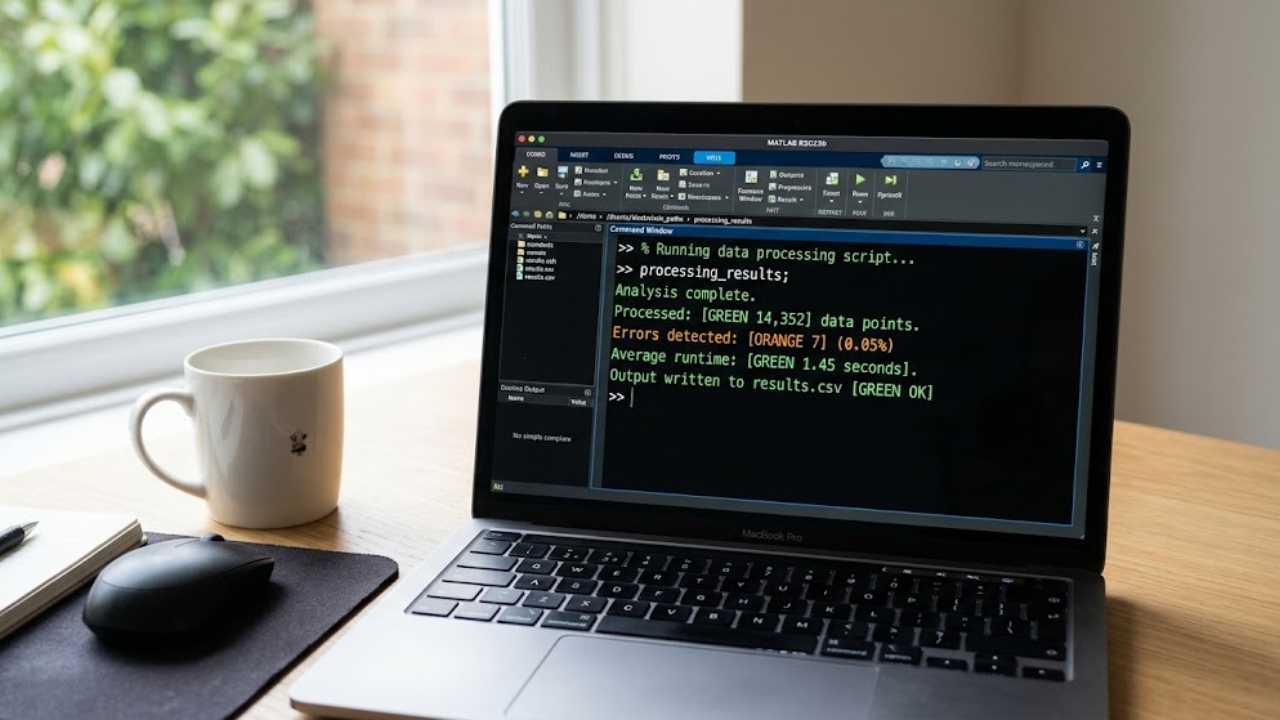
Introduction
Did you know that over 10,000 universities and companies worldwide use MATLAB, yet most beginners struggle with something as basic as printing a variable correctly? Learning MATLAB print commands feels simple on the surface, but the moment you need a formatted percent sign, a PDF export, or a clean EPS file for a journal submission, things get confusing fast.
This guide covers everything you need to know about MATLAB printing in one place. You’ll learn the difference between printing to console versus printing to a file, how fprintf actually works under the hood, how to export figures as PDF or EPS, how to handle the tricky percent sign issue, and where to practice MATLAB print commands online for free without installing anything.
By the time you finish reading, you’ll never second-guess which print command to use again. Whether you’re a student finishing a homework assignment or an engineer preparing a report for publication, these skills apply to nearly every MATLAB project you’ll ever touch.
Let’s start with the basics.
Table of Contents
- What Is MATLAB Print?
- History and Background of MATLAB Print Functions
- Key Features and Types of MATLAB Print Commands
- Benefits of Mastering MATLAB Print
- How to Use MATLAB Print — Step by Step
- Common Myths vs Facts About MATLAB Print
- Expert Tips and Best Practices
- Frequently Asked Questions
- Final Verdict
What Is MATLAB Print?
MATLAB print refers to any command that displays a variable, message, or figure either inside the software’s Command Window or saved to an external file like a PDF or EPS document. It’s a broad term that covers several distinct functions, each built for a slightly different job.
Most beginners assume “print” means one single command, but MATLAB actually splits this concept into two categories. The first is console output, which shows text and numbers directly inside the Command Window while your script runs. The second is file output, which saves a figure, plot, or graphic as a document you can open outside MATLAB entirely.
Think of it like the difference between talking out loud in a room versus writing a letter and mailing it. Console printing is instant and temporary—it disappears once you close MATLAB or clear the window. File printing, on the other hand, creates something permanent that lives on your hard drive and can be shared, emailed, or submitted to a journal.
The core functions you’ll use constantly include disp() for simple console display, fprintf() for formatted console or file output, and print() or exportgraphics() for saving figures as PDF, EPS, PNG, or other formats. Each one solves a specific problem, and knowing which to reach for saves you enormous amounts of time.
For example, if you’re debugging a loop and just want to peek at a value, disp() gets the job done in one line. But if you’re building a lab report and need a graph saved as a high-quality vector file for printing, you’ll reach for exportgraphics() or the older print('-depsc', ...) syntax instead.
Understanding this distinction between console output and file output is the foundation everything else in this guide builds on. Once it clicks, the rest of MATLAB’s printing ecosystem starts making a lot more sense.
History and Background of MATLAB Print Functions
MATLAB was created in the late 1970s by Cleve Moler, a numerical analysis professor who wanted his students to use powerful matrix libraries without writing raw Fortran code. The name itself literally means “Matrix Laboratory,” which explains why early versions focused almost entirely on number-crunching rather than polished text output.
In those early days, output formatting barely existed. Typing a variable name without a semicolon was often the only way to see a result, and there was no elegant way to combine text and numbers into a readable sentence. As MATLAB grew popular throughout engineering departments in the 1980s, this limitation became a real problem for anyone writing scripts meant to be read by other people.
The fprintf function arrived as a direct borrowing from the C programming language, where the “f” stands for “formatted.” Anyone who learned C in college immediately recognized the percent-sign syntax in MATLAB’s version, since MathWorks intentionally designed it to feel familiar to engineers switching between languages.
By the late 1990s and early 2000s, MATLAB expanded heavily into research and academic publishing. Scientists needed a reliable way to export figures for peer-reviewed journals, which meant supporting professional document formats like PDF and EPS became a priority rather than an afterthought.
The classic print function handled this for years, letting users type commands like print('-dpdf', 'filename') to generate a document-ready file. In MATLAB R2020a, MathWorks introduced exportgraphics(), a more modern function designed to produce higher-quality, more consistent exports with fewer manual settings required.
According to MathWorks’ own documentation, exportgraphics remains the officially recommended method for figure exports in current MATLAB releases.
Today, in 2026, MATLAB still holds a dominant position in engineering education and research. A report from MathWorks’ education division notes that MATLAB is taught in the majority of top engineering programs across the United States and Europe, meaning these print functions remain relevant skills for millions of students every year.
This long, layered history is exactly why MATLAB offers so many overlapping ways to print things. Newer functions were added over decades without fully retiring the older ones, which gives you flexibility today but can feel overwhelming when you’re just getting started.
Key Features and Types of MATLAB Print Commands
MATLAB’s printing toolkit breaks down into several distinct categories, each solving a different problem. Understanding these categories helps you pick the right tool instantly instead of guessing.
MATLAB Print to Console
Printing to console means displaying output directly in the Command Window while your script executes. This is the most common form of output beginners encounter first.
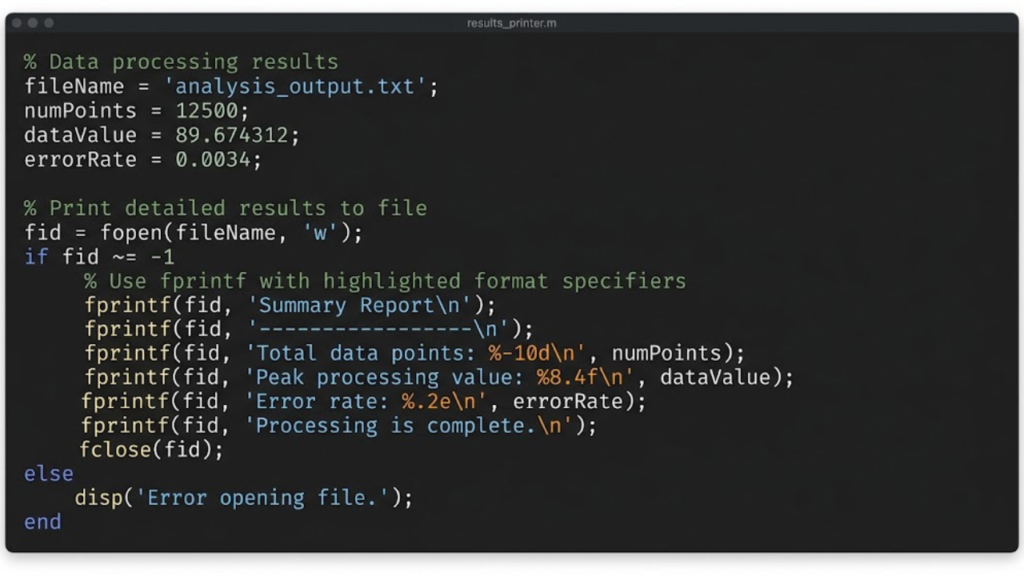
You have three basic options here. Typing a variable name without a semicolon auto-displays the result immediately. Using disp(variable) shows just the raw value with no label attached. Using fprintf('text %d\n', variable) gives you full control over spacing, decimals, and combining text with data.
Most professional MATLAB users default to fprintf once their scripts grow past a few lines, simply because raw auto-display output gets messy fast in anything beyond a quick test.
fprintf MATLAB Explained
The fprintf function is genuinely the workhorse of MATLAB output. It uses conversion specifiers—special codes starting with a percent sign—to tell MATLAB exactly how to format each piece of data.
| Specifier | Meaning | Example |
|---|---|---|
%d |
Integer | 42 |
%f |
Floating-point | 3.140000 |
%.2f |
Float, 2 decimals | 3.14 |
%s |
String | Hello |
%e |
Scientific notation | 3.14e+00 |
%g |
Compact number | 3.14 |
%% |
Literal percent sign | % |
That last row solves one of the most-searched MATLAB questions: how do you print a percent sign? Since a single percent sign triggers a formatting code inside fprintf, you need to type two percent signs together (%%) to actually display one on screen.

MATLAB Print to PDF
Exporting a figure as a PDF is essential for reports, homework submissions, and presentations. You can use the classic syntax print('-dpdf', 'filename'), or the newer, recommended exportgraphics(gcf, 'filename.pdf') introduced in recent MATLAB versions.
PDFs preserve your figure’s layout and text quality reasonably well, though very complex plots sometimes render more cleanly through exportgraphics than the older print function.
MATLAB Print to EPS
EPS stands for Encapsulated PostScript, a vector-based file format widely required by academic journals. Unlike PDF or PNG, an EPS file scales to any size without losing sharpness, which matters enormously when your graph needs to fit a printed page at high resolution.
You generate one using print('-depsc', 'filename') for a color version, or print('-deps', 'filename') for black and white. Many engineering journals still explicitly request EPS files because of this scalability advantage.
MATLAB Print Online
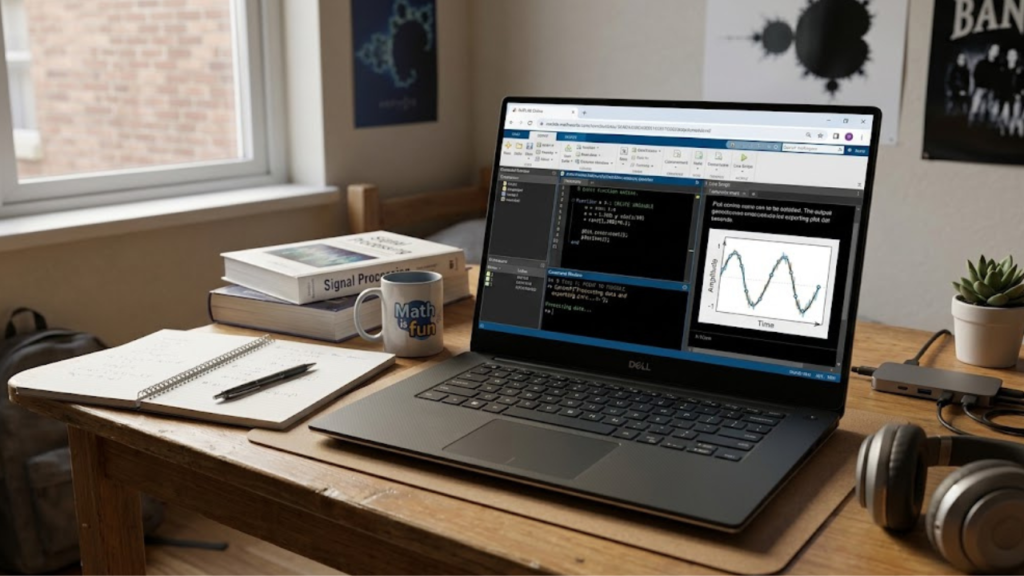
If you don’t own a MATLAB license, MATLAB Online lets you practice every command in this guide directly through a browser. MathWorks offers a free tier that includes most core functionality, including fprintf, disp, and basic plotting tools.
This matters enormously for students or hobbyists who want hands-on practice without committing to a paid license upfront.
MATLAB Print Download
Sometimes “print” actually means saving a file so you can download it later, especially when working inside MATLAB Online where your files live in a cloud workspace rather than a local folder. After running an export command like exportgraphics, you can right-click the generated file in the Online file browser and select download to save it to your own computer.
Benefits of Mastering MATLAB Print
Getting comfortable with these commands pays off in ways that go far beyond just seeing numbers on a screen.
- Faster debugging: Watching variable values change step-by-step through
fprintfoutput helps you catch logic errors immediately instead of guessing where things went wrong. - Professional reports: Clean, formatted console output and properly exported PDF or EPS figures make your assignments and papers look genuinely polished.
- Better team communication: Coworkers and classmates can follow your script’s results without needing to trace through every line of code themselves.
- Journal-ready graphics: Knowing how to export EPS files correctly means your research figures meet strict academic publishing standards without extra software.
- Transferable skills: The
fprintfsyntax you learn in MATLAB maps almost directly onto C, Python, and Java, giving you a head start in other programming languages.
A Stack Overflow Developer Survey consistently ranks debugging and output clarity among the most time-consuming parts of any programmer’s workflow, which makes these seemingly small formatting skills genuinely valuable across your entire career.
Once these tools become second nature, you’ll notice your scripts get easier to test, easier to explain to others, and far less frustrating to maintain months later when you come back to old code.
How to Use MATLAB Print — Step by Step
Follow this walkthrough to practice every major printing method covered in this guide, from console output to professional file exports.
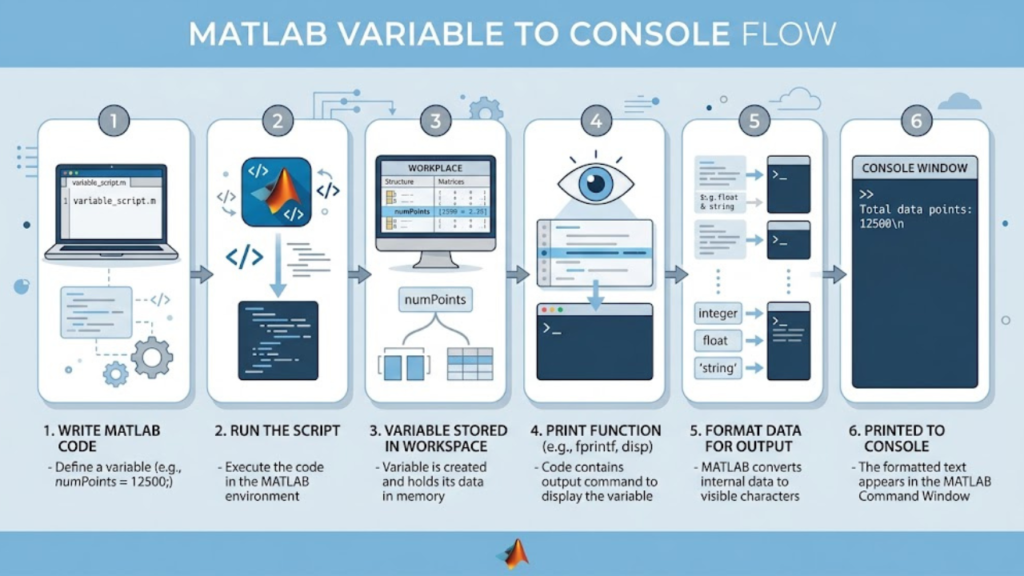
- Open MATLAB or MATLAB Online. If you don’t have the desktop software installed, visit MathWorks’ website and sign into MATLAB Online with a free account to follow along in your browser.
- Create a basic variable. Type
x = 25;and press Enter. Notice nothing prints because the semicolon suppresses automatic display. - Display it with disp(). Type
disp(x)and press Enter to see the raw value25with no extra text or labeling. - Format output using fprintf(). Type
fprintf('The result is %d\n', x)to print a complete, readable sentence combining text and your variable together. - Practice printing a percent sign. Type
fprintf('Accuracy: 98%%\n')and notice the double percent sign correctly produces a single percent symbol in your output. - Combine multiple variables in one line. Type
a = 5; b = 10; fprintf('a = %d, b = %d\n', a, b)to practice formatting several values inside a single string. - Create a simple plot. Type
x = 1:10; y = x.^2; plot(x, y); title('Sample Plot')to generate a basic graph you’ll export in the next steps. - Export your plot as a PDF. Type
exportgraphics(gcf, 'myPlot.pdf')to save the current figure as a document-ready PDF file in your working folder. - Export the same plot as EPS. Type
print('-depsc', 'myPlot')to create a vector-based EPS file suitable for journal submissions or high-resolution printing. - Locate and download your files. If you’re using MATLAB Online, open the Current Folder panel, right-click each exported file, and select the download option to save it locally.
- Verify your files opened correctly. Open both the PDF and EPS files using a PDF reader or vector graphics program to confirm they saved without errors or missing elements.
Working through these eleven steps gives you real hands-on experience with console printing, formatted fprintf output, percent sign handling, and both major file export formats covered throughout this guide.
Common Myths vs Facts About MATLAB Print
Myth: disp() and fprintf() are basically interchangeable.
Fact: They behave very differently. disp() shows a raw value with zero formatting control, while fprintf() lets you build custom strings combining text, numbers, decimals, and special characters exactly how you want them.
Myth: You can’t print a percent sign in MATLAB without errors.
Fact: You absolutely can—just type %% instead of a single % inside your fprintf string, since MATLAB reserves one percent sign for formatting codes only.
Myth: PDF and EPS exports always look identical.
Fact: EPS is vector-based and scales without any quality loss, while PDF quality can vary slightly depending on your MATLAB version, resolution setting, and export function used.
Myth: You need a paid license to try MATLAB print commands.
Fact: MATLAB Online offers a genuinely free tier that supports fprintf, disp, plotting, and most export functions directly in your browser.
Myth: The old print() function is completely obsolete now.
Fact: While exportgraphics() is the newer recommended tool, print() still works fine and remains widely used, especially for EPS exports where it offers more granular control.
Expert Tips and Best Practices
- Always end fprintf strings with
\nso your next printed line doesn’t accidentally merge with the current one, which is one of the most common beginner mistakes. - Use
%.2finstead of the default%fwhenever you want clean, readable decimal output instead of MATLAB’s default six trailing decimal places. - Set a resolution when exporting figures, like
exportgraphics(gcf, 'plot.pdf', 'Resolution', 300), to guarantee publication-quality image sharpness. - Test format strings with simple values first before applying them inside complex loops, since debugging formatting errors is much easier in isolation.
- Use
sprintfinstead offprintfwhenever you need to store formatted text inside a variable rather than sending it straight to the console. - Choose EPS over PNG for journal submissions whenever the target publication allows it, since vector graphics scale cleanly at any print size.
- Keep a personal cheat sheet of specifiers like
%d,%s, and%.2ftaped near your desk until the syntax becomes automatic muscle memory. - Double-check your working directory before exporting, since exported PDF and EPS files save wherever MATLAB’s current folder happens to be pointing.
These small habits genuinely separate messy, beginner-level scripts from clean, professional-grade MATLAB code that’s easy to read, debug, and hand off to someone else.
Frequently Asked Questions
How do I print a variable to the console in MATLAB?
The quickest method is removing the semicolon after any assignment, which auto-displays the result immediately. For cleaner output, use disp(variableName) for a plain value, or fprintf('Value: %d\n', variableName) when you want formatted, readable text. Most professional coders default to fprintf for anything beyond a quick test since it produces far more polished output.
How do I print a percent sign using fprintf in MATLAB?
Since a single percent sign normally triggers a formatting code, you need to type two percent signs together (%%) to display just one literal symbol. For instance, fprintf('Battery: 87%%\n') correctly outputs “Battery: 87%” without throwing any formatting errors or missing characters in your result.
What is the difference between MATLAB print to PDF and EPS?
PDF is a widely compatible document format great for reports, homework, and general sharing, while EPS is a vector graphics format specifically favored by academic journals because it scales infinitely without pixelation. Use exportgraphics(gcf, 'file.pdf') for PDF exports, and print('-depsc', 'file') when you specifically need an EPS file.
Can I use MATLAB print commands online without installing anything?
Yes, MathWorks provides MATLAB Online, a free browser-based version supporting most standard commands including fprintf, disp, plotting, and file exports. This makes it a genuinely solid option for students or beginners who want hands-on practice before deciding whether to purchase a full license.
Why does my fprintf output look wrong, cut off, or throw an error?
This usually happens when your format specifiers don’t match your actual data types, like using %d for a decimal number instead of %f. Check that every % symbol in your string has a correctly matching data type in your function call, and remember to escape any literal percent signs using %% instead of a single one.
How do I download a file after printing it in MATLAB Online?
Since MATLAB Online stores your files in a cloud-based workspace rather than a local folder, you’ll need to open the Current Folder panel, right-click your exported PDF or EPS file, and choose the download option from the menu. This saves a local copy directly onto your own computer for sharing or printing.
What’s the best format to use when printing a MATLAB figure for a research paper?
Most academic journals specifically request EPS files because their vector-based nature keeps text and lines razor-sharp at any print size, unlike raster formats such as PNG. Always check your target journal’s submission guidelines first, since some now accept high-resolution PDFs as an acceptable alternative to traditional EPS files.
Final Verdict
Mastering MATLAB print commands genuinely changes how efficiently you code, debug, and share your work with others. Whether you’re printing simple numbers to the console with fprintf, correctly displaying a tricky percent sign, or exporting research-ready graphics as PDF and EPS, these fundamentals show up constantly throughout any MATLAB project.
The encouraging part is that none of this requires advanced programming knowledge—just consistent practice with the eleven steps outlined above until the syntax feels automatic. Beginners who spend even a single focused hour working through these examples typically save themselves weeks of avoidable frustration down the road.
Whether you’re a student finishing your first assignment or a working engineer preparing figures for a published paper, these printing tools will appear in nearly every script you write from here forward. Start with the basics, practice the percent sign trick until it sticks, and build the habit of exporting clean, properly formatted output from day one.
Call to Action
Found this guide useful? Leave a comment below letting us know which MATLAB print method trips you up the most, or which trick here saved you the most time. Ready to keep learning? Check out our related guides on
Maximum Length Sequence: The Easy Beginner’s Guide
Best DSP Book for Beginners: The Simple 2026 Guide
Decimation-in-Time: The Simple Guide to DIT FFT
Chip Support Library: The Easy Guide to CSL for TI DSPs
And if this helped you, share it with a classmate or coworker just starting their own MATLAB journey.