 By DSP Staff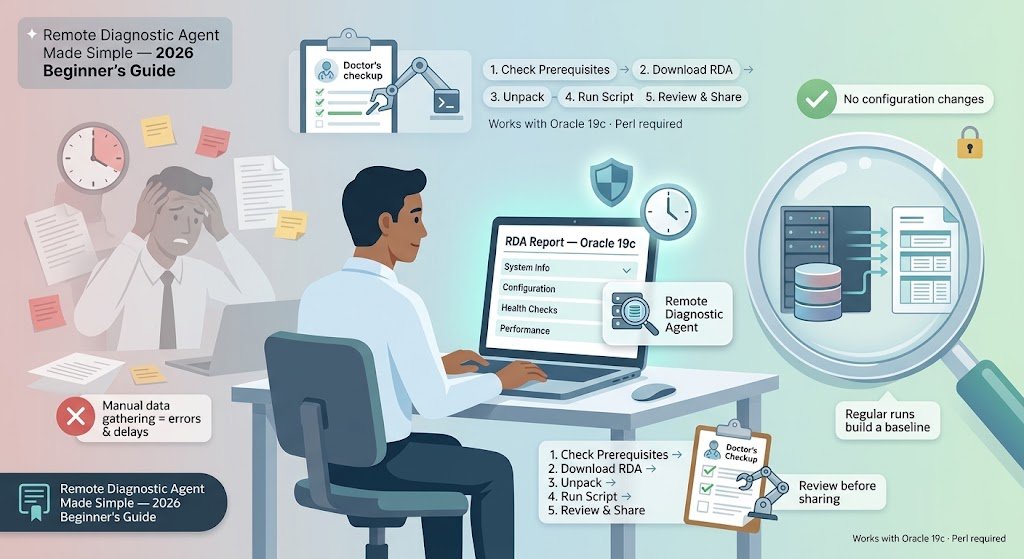
Table of Contents
- Introduction
- What Is a Remote Diagnostic Agent?
- Why Does a Remote Diagnostic Agent Matter?
- Remote Diagnostic Agent: Key Facts and How It Works
- How to Run RDA in Oracle 19c
- Common Mistakes and Myths to Avoid
- Expert Tips for Best Results
- Frequently Asked Questions
Introduction
Did you know that a single missing configuration file can stall an entire database support case for weeks? Many database administrators spend hours gathering system details by hand before Oracle support can even begin troubleshooting. A remote diagnostic agent solves that problem by collecting the information automatically.
If you have ever been asked to “send us your system details” and felt stuck, this guide is for you. A remote diagnostic agent is a tool that gathers health and configuration data from your systems so experts can diagnose issues faster. Oracle’s version, called RDA, is one of the most widely used.
In this guide, you will learn what a remote diagnostic agent is, why it matters, how it works, and how to download and run RDA in Oracle 19c step by step. We will also cover common mistakes, expert tips, and answers to the questions people search for most. Whether you are a student, a new DBA, or a general IT reader, you will walk away knowing exactly what to do.
What Is a Remote Diagnostic Agent?
Think of a remote diagnostic agent like a doctor’s checkup form. Instead of guessing why you feel tired, the doctor asks for blood pressure, weight, and lab results. The form gathers everything in one place, so the doctor can make a faster and better decision.
A remote diagnostic agent is a software tool that runs on your computer or server, collects detailed information about its hardware, operating system, software versions, and configuration, and packages that data into a report. Support engineers can then review the report without needing to log in to your system themselves. This saves time for everyone and keeps your environment secure.
Oracle RDA (Remote Diagnostic Agent) is Oracle’s own version of this tool. It is designed specifically for Oracle products, including Oracle Database, so it knows exactly what details matter for troubleshooting.
Why Does a Remote Diagnostic Agent Matter?
A good diagnostic tool does more than collect data. It makes your support experience smoother and your systems easier to maintain. Here is why it is worth your attention:
- Faster support cases: A complete report lets engineers start working right away instead of asking for missing details.
- Fewer errors: Automated collection avoids the mistakes that happen when someone copies settings by hand.
- Better health checks: Regular runs reveal configuration problems before they become outages.
- Consistent data: Every report follows the same format, which makes comparisons easier over time.
- Stronger security: You control what gets collected and can review the report before sharing it.
- Less manual work: One command replaces hours of checking files and settings.
According to Oracle’s support documentation, submitting a complete RDA report with a service request helps engineers resolve issues more quickly.
Remote Diagnostic Agent: Key Facts and How It Works
RDA is not a single fixed tool. It comes in several flavors depending on what you need to check. Here is a quick look at the main ones.
Oracle RDA (Database Diagnostics)
This is the classic version used for Oracle Database, Fusion Middleware, and related products. It runs as a set of scripts and produces an HTML report you can open in a browser.
SAP Diagnostics Agent
SAP systems use their own diagnostic agent to monitor performance and gather system data for SAP Solution Manager. It is a different product, but it serves the same core purpose of collecting diagnostic information remotely.
Comparison Table
| Tool | Vendor | Main Purpose | Output |
|---|---|---|---|
| Oracle RDA | Oracle | Database and middleware diagnostics | HTML report |
| SAP Diagnostics Agent | SAP | System monitoring and support data | Data sent to Solution Manager |
| Generic monitoring agents | Various | Ongoing health checks | Dashboards and alerts |
Choose the tool that matches your product, because each one collects different information.
How to Run RDA in Oracle 19c
Ready to get started? Follow these steps to download and run RDA on your Oracle 19c environment.
- Check your prerequisites. Make sure you have a working Perl installation and access to your Oracle Home. RDA relies on Perl, so confirm the version before you begin.
- Download the latest RDA package. Sign in to My Oracle Support (MOS) and search for the current RDA download note. Always pick the newest version, because older builds may miss checks for 19c.
- Unpack the archive. Extract the files into a folder you control, such as a dedicated directory under your home path. Keep the folder organized so you can find reports later.
- Run the RDA script. Change into the RDA directory and launch the main script with Perl, selecting the Oracle Home and database you want to analyze. Follow the on-screen prompts carefully.
- Review and share the report. Open the generated HTML report in a browser, check the contents for sensitive information, and then upload it to your support request in MOS.
Common Mistakes and Myths to Avoid
Mistake: Using an outdated RDA version. Old builds may not recognize newer Oracle releases. The truth is that you should always download the latest version from MOS before running it.
Myth: RDA changes your database settings. Many people worry the tool will modify their system. The truth is that RDA is designed to collect information and does not change your configuration.
Mistake: Running it without the right permissions. Some checks need elevated access to read certain files. The truth is that you should run RDA with an account that can read the required Oracle directories.
Myth: The report is only useful during a crisis. Some teams only run RDA when something breaks. The truth is that regular runs give you a baseline, so changes stand out quickly.
Mistake: Sharing the report without reviewing it. Reports can contain hostnames, paths, and other details. The truth is that you should review the output and remove anything sensitive before uploading.
Expert Tips for Best Results
- Schedule regular runs so you always have a recent baseline to compare against.
- Keep a dated archive of your reports to spot trends over months.
- Note any changes you made before running RDA, so engineers understand the context.
- Test on a non-production system first if you are new to the tool.
- Store reports securely and limit access to those who need them.
Frequently Asked Questions
What is a diagnostic agent?
A diagnostic agent is a program that collects detailed information about a computer, server, or application and organizes it into a report. It helps support teams understand what is happening without needing direct access to the system. Diagnostic agents often gather hardware details, software versions, configuration settings, and performance data. Oracle RDA and SAP Diagnostics Agent are two common examples used by enterprise IT teams worldwide.
How do I install the SAP Diagnostics Agent?
Installing the SAP Diagnostics Agent usually starts with downloading the installation media from the SAP Software Download Center. You then run the installer on the target host and follow the prompts to set the instance number and connection details. The agent needs to connect to your SAP Solution Manager system, so confirm network access first. Always check the official SAP installation guide for your specific version before you begin.
Can RDA harm my Oracle database?
RDA is designed to read and collect information rather than change your database. It does not typically alter data or configuration settings during a normal run. Still, you should test it on a non-production system first if you are unsure. Reviewing the report before sharing it also protects sensitive details. If you have concerns, check the official Oracle documentation or contact Oracle Support.
Conclusion
A remote diagnostic agent saves time, reduces errors, and gets your support cases moving faster. Remember these three key points: always use the latest RDA version, review reports before sharing them, and run diagnostics regularly to build a useful baseline. Each habit keeps your Oracle environment healthier and your support experience smoother.
Start today by signing in to My Oracle Support and checking which RDA version is current for your environment. Then run it on a test system to see the report for yourself. What is the biggest challenge you face when gathering system details for support?